PC Cloud Gaming: How to Optimize Your Gaming PC for Cloud Gaming with SensePC
PC cloud gaming allows you to play compatible games using remote computing hardware instead of relying PC Cloud Gaming: How to Optimize Your Gaming PC for Cloud Gaming with SensePC
entirely on your computer's local processor and graphics card. A cloud gaming PC runs games on a remote server and streams the gameplay to your device through an internet connection.
Whether you use a gaming desktop, standard laptop, or Mac, optimizing your device and network can make cloud gaming smoother and more responsive. With SensePC, you can also rent a Windows 11 cloud gaming PC with remote GPU resources rather than purchasing expensive physical hardware.
What Is PC Cloud Gaming?
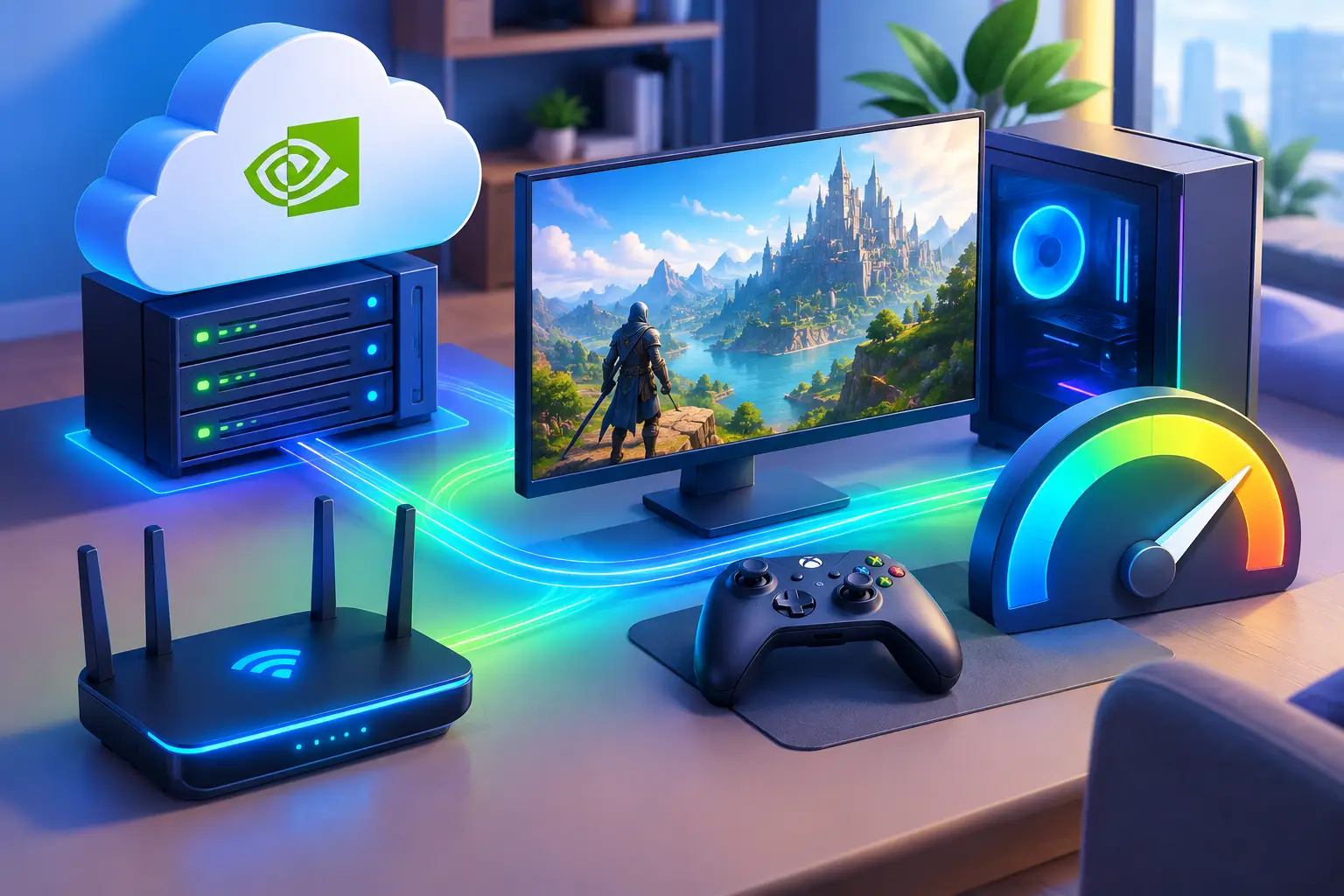
PC cloud gaming uses remote computers to process games and stream their video and audio to your local device. Your keyboard, mouse, or controller inputs travel over the internet to the cloud computer, which processes them and sends the updated display back.
Unlike traditional gaming, most of the game's processing happens remotely. However, your local computer still needs sufficient resources to decode the video stream and maintain a stable connection.
How to Optimize Your Gaming PC for Cloud Gaming
Even when games run on remote hardware, your local PC settings can affect streaming quality, responsiveness, and stability.
1. Use a Stable Internet Connection
A reliable internet connection is one of the most important requirements for cloud gaming. If possible, connect your computer directly to your router using an Ethernet cable.
For Wi-Fi users:
-
Prefer a 5 GHz or 6 GHz Wi-Fi connection.
-
Stay close to the router.
-
Avoid downloading large files during gaming sessions.
-
Reduce unnecessary network traffic from other devices.
2. Reduce Network Latency
Latency determines how long it takes for your inputs to reach the remote computer and for the resulting display to return.
To reduce delays:
-
Select a cloud server region geographically close to you.
-
Avoid unnecessary VPN connections.
-
Use a stable network rather than switching between Wi-Fi networks.
-
Restart your router if you experience persistent connection problems.
3. Optimize Your Display Settings
Your local display settings can influence the quality of the streaming experience.
Consider these adjustments:
-
Use a resolution supported by your monitor and streaming configuration.
-
Match the refresh rate to your display's capabilities.
-
Close unnecessary applications that consume system resources.
-
Keep your graphics drivers updated.
A higher streaming resolution or frame rate requires more bandwidth and reliable decoding performance.
4. Close Background Applications
Applications running in the background can consume CPU, RAM, bandwidth, and GPU resources.
Before starting a cloud gaming session, consider closing:
-
Unnecessary browser tabs.
-
Large downloads and file transfers.
-
Background video streams.
-
Unused applications and launchers.
This helps reserve local resources for receiving and decoding the game stream.
5. Keep Your System Updated
Updated operating systems, network drivers, browser versions, and graphics drivers can improve compatibility and stability.
Use a supported browser or the provider's recommended remote desktop application. Also, check that your firewall and security software allow the required connection.
Why Choose a Cloud Gaming PC Instead of Upgrading Hardware?
Upgrading a physical gaming computer can be expensive, especially when you need a more powerful graphics card or processor. A cloud gaming PC offers an alternative by providing remote computing resources through a rental service.
Benefits include:
-
Access to remote GPU resources.
-
Less dependence on local gaming hardware.
-
Flexible access from supported laptops and desktops.
-
A complete remote Windows desktop environment.
-
Rental options instead of a large hardware purchase.
Your local device and internet connection still affect streaming quality, so cloud gaming is not completely independent of your hardware.
Experience PC Cloud Gaming with SensePC
SensePC provides Windows 11 cloud computers that users can rent and access remotely. Its Xtreme configurations feature NVIDIA L4 graphics with 24 GB of GPU memory, providing remote GPU resources for compatible games and demanding applications.
Key features include:
-
Windows 11 cloud desktop access.
-
NVIDIA L4 GPU configurations.
-
Steam and Epic Games Launcher readiness on Xtreme configurations.
-
Persistent SSD storage for supported games, files, and settings.
-
Browser access and native viewer options on supported devices.
-
Hourly, Daily, and Monthly rental plans.
Users bring their own game accounts and licences and can install compatible games. Game compatibility depends on hardware requirements, publisher policies, and anti-cheat restrictions.
Flexible Cloud PC Rental Options
SensePC offers three rental options:
-
Hourly: For occasional gaming and shorter sessions.
-
Daily: For users who need a cloud PC for a day.
-
Monthly: For recurring access to a remote desktop.
Compute charges apply while the cloud PC is running. Persistent storage may continue to incur charges when the computer is stopped.
Final Thoughts: Get More from PC Cloud Gaming
Optimizing your internet connection, reducing latency, updating drivers, and closing unnecessary applications can help improve your how to optimize gaming pc for cloud gaming. Choosing a suitable remote PC configuration and server location is equally important.
With NVIDIA L4 GPU configurations, Windows 11 desktops, and flexible rental options, SensePC provides another way to access remote gaming hardware without investing in a physical gaming computer.
Explore SensePC and choose a cloud PC configuration that matches your gaming requirements.